

You Can Now Highlight in the Substack Post Editor
Zach from Substack said "ask me anything", so a writer did, and now we have colours

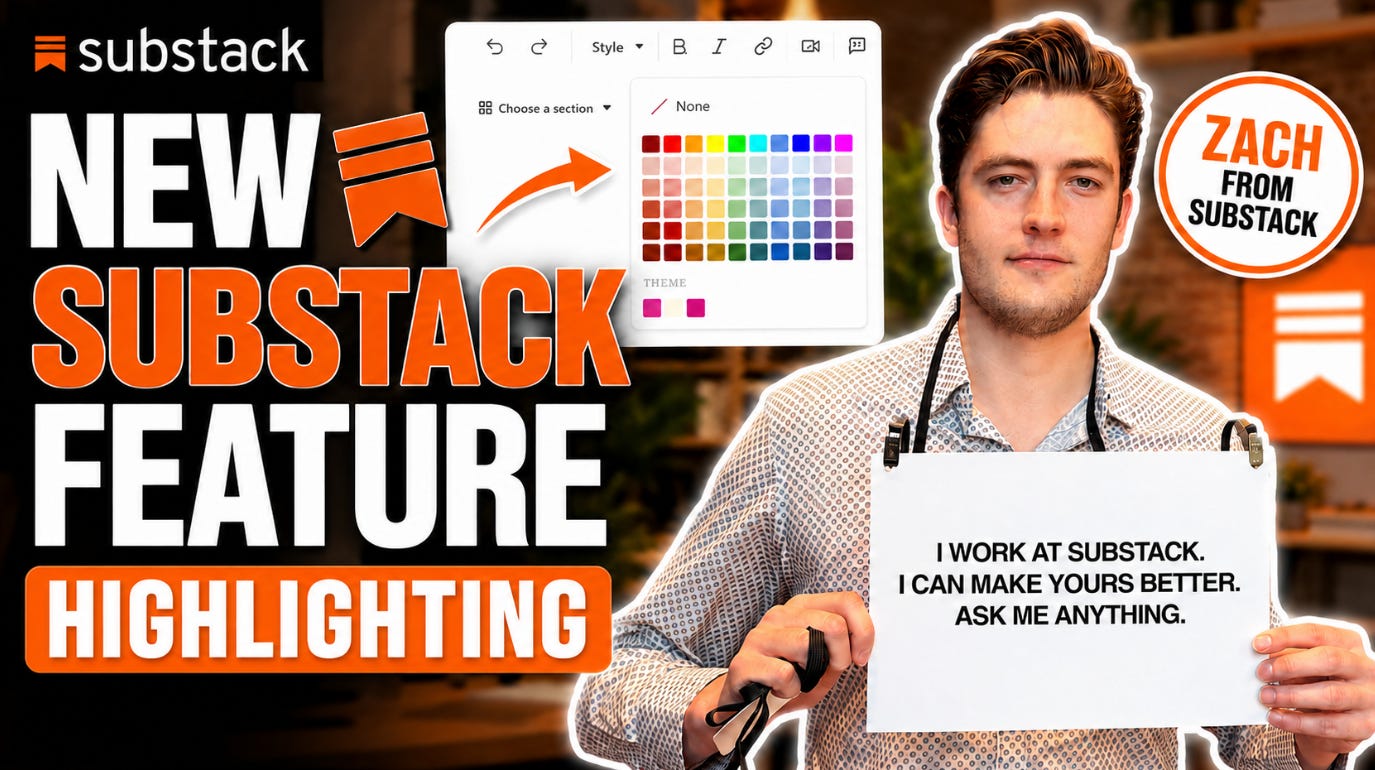
You've met Zach before. I've featured him here more than once, and honestly, it's about time again.

That sign is the whole point. Substack as a platform is listening and this week we got proof.
UPDATE: Here’s the video
Table of Contents
Ask, and ye shall receive
Here’s what happened. A smallstacker called Karena with around 500 subscribers made a simple request:
Please give us the ability to highlight a segment of text. We have Bold, underline and strikethrough. Why not highlight?
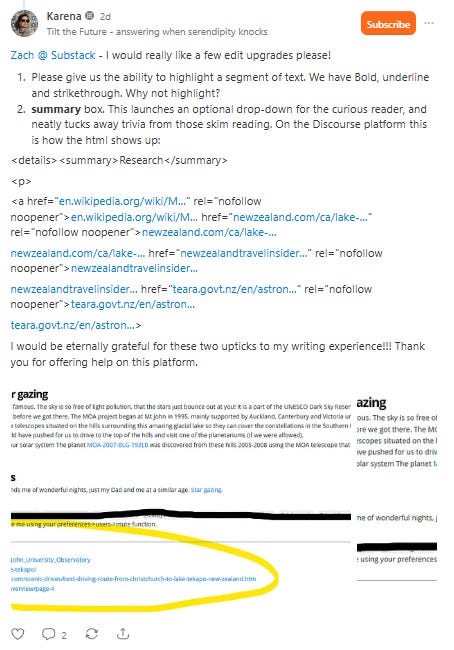
Reasonable, right? Some have wanted it at some point. And then Zach replied:
Good feedback. We went ahead and built highlighting for you. It is now available in the editor.
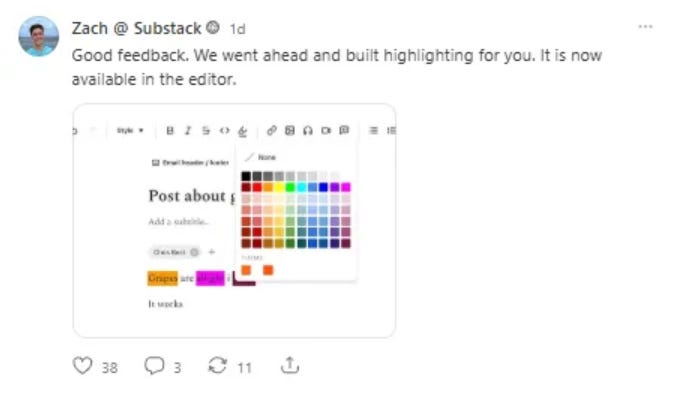
That’s the part I want you to sit with. Not “we’ll pass it along to the product team.” Not “great idea, we’ll consider it.” A writer asked on a Thursday and the feature showed up in the editor on Friday. When someone literally walks around with a sign saying ask me anything, this is what they mean.
So let’s talk about what you can actually do with it.
First, where’s the Substack Post Editor?
Quick orientation in case you’re newer here. From your publication Dashboard click Create and select Article.
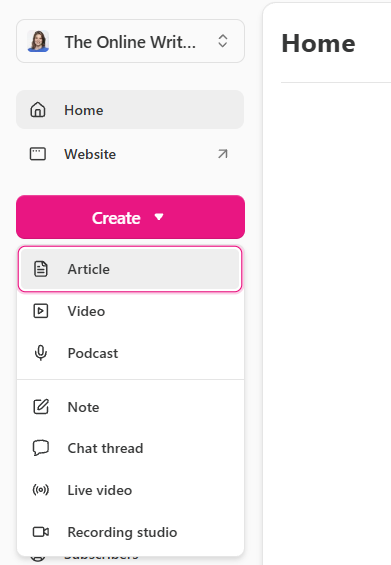
That drops you straight into the writing editor, and the formatting toolbar sits across the top.
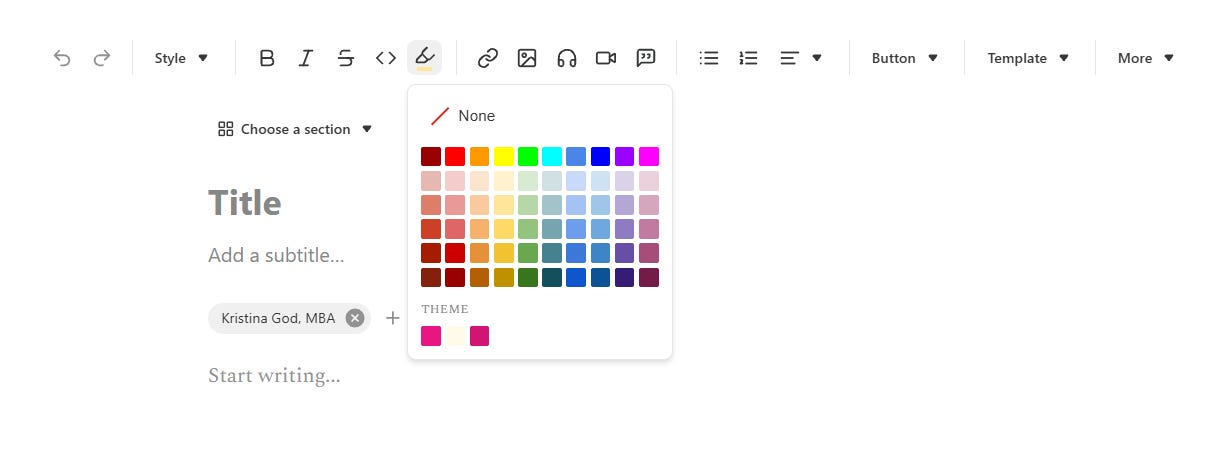
You already have a solid kit up there: a Style dropdown for headings, Bold, Italic, Strikethrough, code, links, images, audio, video, block quotes, and bulleted and numbered lists.
Now there’s one more tool in that row since yesterday…
How highlighting in the Substack Post Editor works

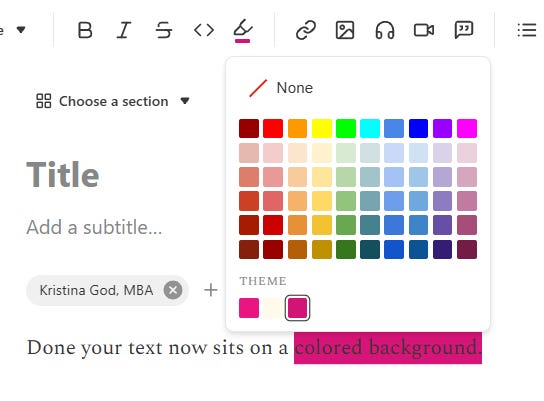
Select the text you want to highlight, a word, a phrase, a whole sentence.
Click the highlighter icon in the formatting toolbar (the little pen/marker).
A color palette opens up.
Pick your color.

Today’s post was brought to you by the Substack for Beginners Course!
On Friday, July 5, you can meet us LIVE and talk about the new feature/s and how to master the Substack post editor.
I teach in English but also can do a session in German for everyone interested!
So from how many colors can you choose from?
The palette is a full grid organized by hue, grays, reds, oranges, yellows, greens, teals, blues, and purples/magentas, each available in several shades from deep and saturated to soft and pale. That’s 60 swatches to choose from.
On top of that you get two extras:
A Theme row at the bottom that pulls in your publication’s own brand colors, so your highlights can match your look automatically.
A None option at the top to remove a highlight whenever you want.
In the screenshot above I gave “colored background” a lour magenta.
Bonus: the new gray callout box
While we’re here, there’s a second, new way to make text stand out that pairs beautifully with highlighting: the callout block.
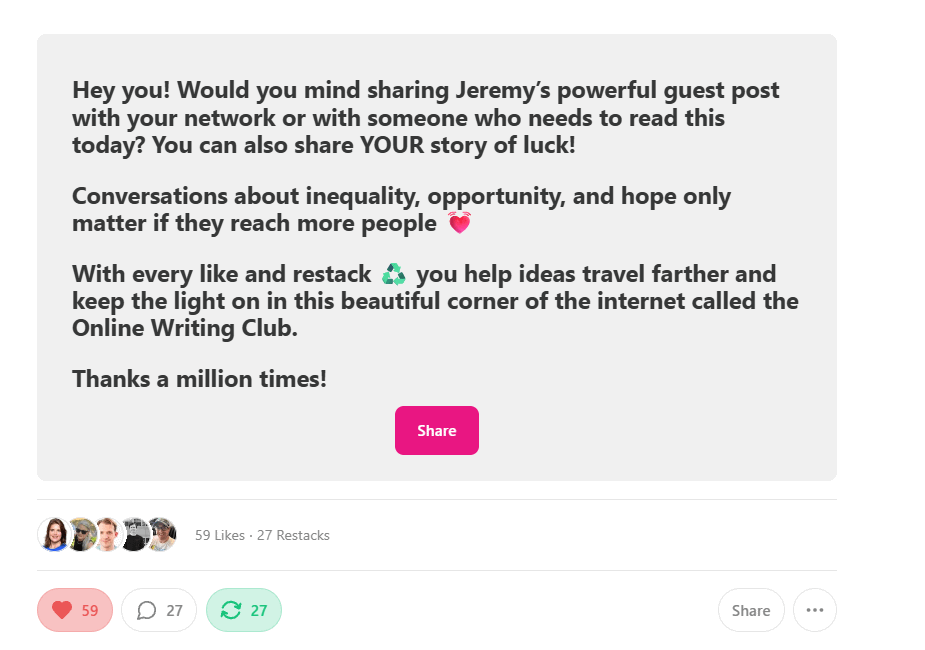
This is the gray box you may have seen popping up in my posts lately. It’s a visually distinct, formatted container that lifts a chunk of text out of the flow of your writing so it can’t be skimmed past.
To add one:
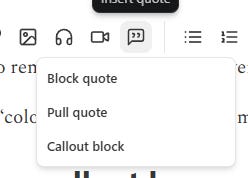
select a paragraph,
then open the quote icon in the formatting toolbar (more advanced blocks live under the More menu),
and choose Callout block.
One small thing to know: once a callout block is placed, you can’t drag it to a new spot. If you want it elsewhere, delete it and add a fresh one where you want it.
What’s the difference between inline highlighting and a callout box?
Inline highlighting is for a word or phrase.
The callout box is for a whole idea you want boxed off.
Use them together and your posts get real visual rhythm.
How writers can actually use inline highlighting
You often see this on websites. It’s a style form.
A few ideas:
Guiding the eye. Long essay? Highlight the one sentence that’s the actual thesis so skimmers still get it.
Color-coding. Use one color for definitions, another for action steps, another for quotes, a quiet system your readers learn to read.
Promos and CTAs. Highlight the discount, the deadline, the link you don’t want missed.
BONUS tip: Callout boxes for the big stuff. Box off a key takeaway, a reader question, or a quote from another writer.
How will you use highlighting on Substack?
Tell me in the comments.
Zach’s sign said it best:
“I work at Substack. I can make yours better. Ask me anything.”
The highlighting story proves that asking works. So let’s ask.
What feature do you want Substack to ship next?
I’ll go first:
I want monthly and annual subscriptions to be properly separated , managed independently, with more control over how each is offered. That’s my top one.
Drop yours below. Worst case, nothing happens.
Oh and one nice anecdote, Karena now wants to call highlighting “Karena feature”. So if you also want to see your name on a feature..

Best case? Someone with a sign goes and builds it.
Shoot your shot!
P.S. Need a FREE Substack for Beginners course? Sooo much too learn… not so miuch time. Learn from someone who has gone before you and helped 700+ Substack writers kickstart their journey.

I’ve been wanting highlighting capabilities for a long time but never thought about asking someone in the know about it. I’m far from a beginner on Substack but I’m considering your course if you’re going to be covering all of the new features. 🤔 Another Kristina course might be in order.
is their a drop cap feature as on Medium?